Friday, 14 December 2018

How to Fix Cellular Data (3G/4G/LTE) Not Working on Your iPhone XS or iPhone XS Max


How to Fix Cellular Data (3G/4G/LTE) Not Working on Your iPhone XS or iPhone XS Max

Here are 7 solutions you should try to fix the cellular data or mobile data not working problem on your iPhone XS or iPhone XS Max.
1. Ensure Cellular Data is Enabled

While we know most of you might have already checked it, we have come across a surprising number of people who face the issue where cellular data is not working, where they have disabled Mobile Data, and forgotten to toggle it back on.

So just to be doubly sure, follow these steps:


Swipe down from the right to access the Control Center.


Check if Mobile or Cellular Data has been enabled. If mobile or cellular data is enabled, the cellular icon should be green.


If the cellular data icon is grayed out then tap the icon and wait for it to turn green to turn on Cellular data, and the issue that you were facing with Cellular data not working should be fixed.

You may also want to check if AirPlane mode is disabled. If not disable it. I tend to put my iPhone XS Max in AirPlane mode when I am taking a video to prevent calls from stopping the video.
2. Enable and Disable AirPlane Mode

At times, you may face an issue because your iPhone is connected to a cellular tower that may be overloaded with connections.

An easy way to switch cellular towers is by enabling AirPlane mode, waiting for 10 seconds, and turning disabling it. This results in your phone getting disconnected from the cellular tower, and trying to connect with another cellular tower, which may not have the problem. I have tried this a few times on the iPhone XS Max when I faced an issue with cellular or mobile data and it has resolved the problem.
3. Hard Reset iPhone XS or iPhone XS Max

Like all tech problems, there is no harm in starting off by hard resetting or force rebooting your iPhone XS and iPhone X to see it helps.

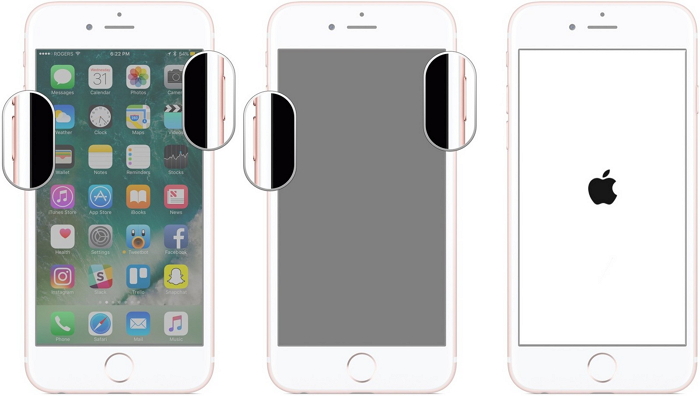
On the iPhone XS and iPhone XS Max, press the Volume Up button, then the Volume Down button and then quickly press and hold the Side button until you see the Apple logo show up. You can check our post on how to hard reset iPhone XS and iPhone XS Max if you need further help.


4. Reset Network Settings

Most networking related issues I’ve experienced have been fixed after resetting network settings. Resetting these settings flushes caches and clears DHCP settings and other networking related info. To reset network settings, open the Settings app and navigate to Settings > General > Reset and tap on Reset Network Settings. It will prompt you to enter the passcode to proceed.

Please note that the only downside of Resetting Network Settings is you need to add the VPN settings and related profiles again.
5. Disable VPN

If you have enabled via the Settings app or a VPN app, then try to disable VPN to see if it resolves the issue. You can disable VPN via the Settings app and navigate to the VPN settings to disable the Status toggle from Connected to Not Connected. If you are not able to disable it then launch the VPN app to disable VPN temporarily to figure out if it resolves the cellular data not working problem on your iPhone.
6. Upgrade to the Latest iOS Software Update

If the methods mentioned above doesn’t work then try to install the latest iOS software update. I didn’t mention this earlier, as we are seeing some reports of users facing mobile data connectivity issue after upgrading to iOS 12.1.2. But if the tips mentioned above don’t help, then you can try to install the latest iOS software update.
7. Restore and Setup as new iPhone

If none of these tips fix the cellular data or mobile data issues, the last resort is to restore your iPhone or iPad via iTunes and set it up as a new device. This way, you start afresh and get rid of possibly problematic customizations and settings on your device. Follow the instructions in the post linked below to do a clean restore to the latest version of iOS via iTunes.

Sponsor ads:

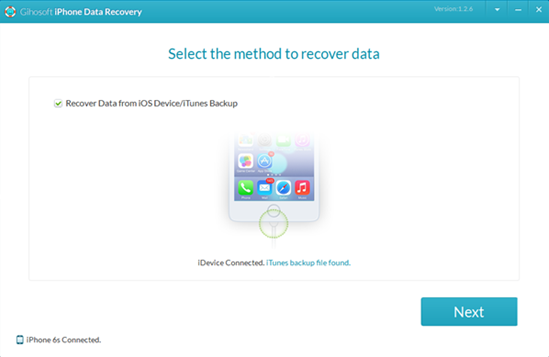
Gihosoft Free iPhone Data Recovery:https://www.gihosoft.com/iphone-data-recovery-free.html

Gihosoft iPhone Data Recovery Free

Free iPhone Data Recovery Software for Windows/Mac

Recover up to 12+ types of files, including contacts, SMS, photos, WhatsApp, Viber, notes, etc.

Restore lost data from iOS devices directly or from iTunes and iCloud backup

Recover iPhone data lost due to iOS upgrade/jailbreak, accidental deletion, device lost or broken

Support all the latest iPhone, iPad and iPod Touch

Both Free and Pro version.

If you lost data after you updated to a new iPhone, you can always use Gihosoft iPhone Data Recovery to get the data back from the old iPhone or backup.You may also like: iphonerecovery.com

If you use android phones, please choose Gihosoft Android Data Recovery.

With Gihosoft Android Data Recovery, no longer afraid of data loss!

Gihosoft RePicvid Free Photo Recovery Software provides a free photo recovery software for windows to help users recover the deleted or lost photo for free.

Jihosoft Android Data Recovery: the best Android Data Recovery software for Windows and Mac to recover deleted contacts, messages, photos, videos, WhatsApp and etc from Android devices.

jihosoft Free iPhone Data Recovery


Worth reading:Best youtube downloader online download youtube 1080p


8. Visit an Apple Store

Even after performing all these steps, you’re still having problems, then you might want to visit your nearest Apple Store to know of any possible hardware related issues.

I have faced intermittent issues with cellular data on my iPhone XS Max, which I have managed to resolve with solution 2.

Let us know in the comments if you faced any cellular data or mobile data related issues on your iPhone XS or iPhone XS Max, and if so, were you able to fix the issues with these tips.

Tuesday, 11 December 2018

How To Send A Voice Message On Instagram


How To Send A Voice Message On Instagram:


Launch and open your Instagram account.


Next, tap on the blue arrow from the upper right corner or from your home page swipe to go to the direct messages window.


Once you enter your direct message window, open the conversation to whom you want to send a voice message.


Now, you will find a new mic option on your “Message” panel (bottom of your screen). So, just tap and hold the mic and begin recording your message. (If you don’t find a mic button then try to update your Instagram first).


Once your message is recorded release your finger from the mic button. This will send your recording. But if you want to cancel your recording you can still do it, just don’t release your finger instead continue holding the mic and move your finger to the trash. So, when the color of the trash gets red it means the recording is deleted.
How to send a hands-free message on Instagram:


Launch and open your Instagram account.


Next, tap on the blue arrow from the upper right corner or from your home page swipe to go to the direct messages window.


Now, go to a conversation whom you want to send a hands-free message. (Here’s where it gets a little tricky, but I am sure you will manage). Tap and hold the mic and then you will see an unlock button a little upwards. So, just swipe to the unlock button and now, you have locked your recording in the hands-free mode. That’s it now, simply record your audio without having to press on the screen. And if you want to delete your recording then just tap on the same trash button from the bottom left corner.

Note: If you have sent your voice message and then want to delete it, then just like any other message on Instagram long press on the voice message and you will get an “Unsend Message” option.

So, above were the steps through which one can easily send a voice message on Instagram. Now, if you want a quick recording then first method is perfect, but if your conversation is long and you don’t want to get tired by holding the mic on the screen, then the hands-free method is just for you. So, now even though the feature of the voice message is both on Facebook as well as WhatsApp, it is to see how Instagrammers welcome this new update and how it makes their chatting life even more comfortable and quick.

Sponsor ads:

Gihosoft Free iPhone Data Recovery:https://www.gihosoft.com/iphone-data-recovery-free.html

Gihosoft iPhone Data Recovery Free

Free iPhone Data Recovery Software for Windows/Mac

Recover up to 12+ types of files, including contacts, SMS, photos, WhatsApp, Viber, notes, etc.

Restore lost data from iOS devices directly or from iTunes and iCloud backup

Recover iPhone data lost due to iOS upgrade/jailbreak, accidental deletion, device lost or broken

Support all the latest iPhone, iPad and iPod Touch

Both Free and Pro version.

If you lost data after you updated to a new iPhone, you can always use Gihosoft iPhone Data Recovery to get the data back from the old iPhone or backup.You may also like: iphonerecovery.com

If you use android phones, please choose Gihosoft Android Data Recovery.

With Gihosoft Android Data Recovery, no longer afraid of data loss!

Gihosoft RePicvid Free Photo Recovery Software provides a free photo recovery software for windows to help users recover the deleted or lost photo for free.

Jihosoft Android Data Recovery: the best Android Data Recovery software for Windows and Mac to recover deleted contacts, messages, photos, videos, WhatsApp and etc from Android devices.

jihosoft Free iPhone Data Recovery


Worth reading:Best youtube downloader online download youtube 1080p


Saturday, 18 August 2018

How to Find and Change the iTunes Media Folder Location

How to Find and Change the iTunes Media Folder Location


Part 1: Find and Change the iTunes Media Folder Location

Please enter Preferences to start the process.

If you are using MAC, choose iTunes > Preferences


If you are using Windows, choose iTunes > Edit > Preferences

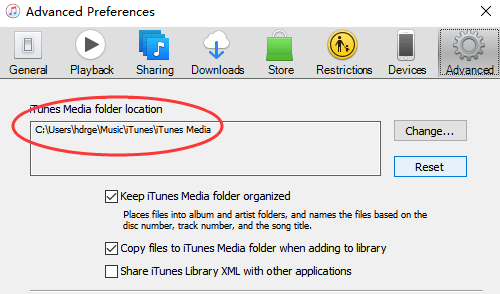
Once you enter the Preferences section, click on the Advanced tab. Once you click it, you will see a grey box under "iTunes Media folder location".

To proceed towards location change, click Change button followed by entering the new changed location.


Note: Once you change the location setting for your folder, file consolidation is required to move the files to the new location. To do so, choose File > Library > Consolidate files from the top menu bar of the iTunes window and click OK.
Part 2: Keep Your Media Folder Organized

Follow the easy step to keep your media folder totally organized.


For now, check:Free iTunes/iPhone Backup Extractor for iPhone, iPadJihosoft iTunes Backup Extractor is a powerful tool to recover and extract important data from iPhone, iPad & iPod touch backup on Windows or Mac.


Go to the Preferences > Advanced tab (steps mentioned above).

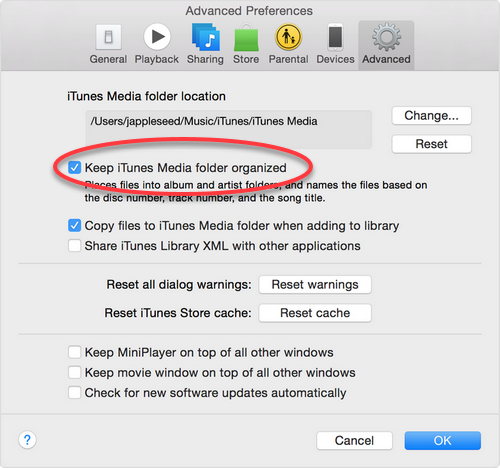
Select "Keep iTunes Media folder organized" to keep your files organized into folders based on information, such as album and artist and to name them basis the track number, disc number or song title.


You may also like:Gihosoft Total Video Converter is a professional all-in-one video tool that enables you to convert videos and audios into various different formats. You can also download videos from YouTube or other online video sharing sites and convert them easily. Plus, you’re able to personalize your videos with its inbuilt editor, such as, trimming, cropping, applying video effects, adding watermark, subtitles, and more. If you need a powerful and professional desktop video converter program, just download Total Video Converter and follow the step-by-step guide here to have a try.


Friday, 10 August 2018

iPhone not Syncing with iTunes After iOS 12 Update

Fix iPhone not Syncing with iTunes After iOS 12 Update

#1 Check Whether Your iPhone is Syncing with iCloud

iPhone will not sync with iTunes if it is already syncing with iCloud. So you will need to make sure that syncing with iCloud is stopped before you try to sync it with iTunes. The method to do this is quite straightforward. Follow these instructions:


Open Settings on your iPhone.


Tap on your Apple ID. It is displayed on the top of the Settings' interface.


Now select iCloud from the list of options and check these options: Photos, Calendars, and Contacts.


If any of the above mentioned options is turned on, then it means it is being synced with iCloud. Turn them off by tapping them and then attempt the sync with iTunes.


#2 Make Sure You Have Logged into iTunes

iTunes does not allow syncing purchased items unless you log in via your Apple ID. So make sure that you are logged in before attempting the sync. Follow these instructions:


Launch iTunes.


Navigate to Account section and see if your email address for your Apple account is displayed there. If not, follow the next step.


If your email address is not shown, then it means you are not logged in. In order to login, click the Sign in option and then type your Apple ID username and password.


After signing in, navigate to Account > Authorizations and then click 'Authorize this computer' option. You may need to enter your password again. Once your computer is authorized, you will be able to sync without any problems.


#3 Try the Wireless Syncing Method

Wireless syncing is another method to sync your iPhone with your computer. It is recommended that you try this method if your iPhone not syncing with iTunes via USB cable. Follow these instructions:

Step 1. Before proceeding, make sure that your iPhone and your computer are on the same wireless network.

Step 2. Next, connect your iPhone to your computer via lightning cable and launch iTunes.

Step 3. On iTunes, click the summary dialog of your connected iPhone and check the option named as 'Sync with this iPhone over Wi-Fi'.


Step 4. Now on your iPhone, open Settings and navigate to General > iTunes Wi-Fi Sync and choose the Sync now option.


Gihosoft Total Video Converter is a professional all-in-one video tool that enables you to convert videos and audios into various different formats. You can also download videos from YouTube or other online video sharing sites and convert them easily. Plus, you’re able to personalize your videos with its inbuilt editor, such as, trimming, cropping, applying video effects, adding watermark, subtitles, and more. If you need a powerful and professional desktop video converter program, just download Total Video Converter and follow the step-by-step guide here to have a try.


Jihosoft Android Data Recovery: the best Android Data Recovery software for Windows and Mac to recover deleted contacts, messages, photos, videos, WhatsApp and etc from Android devices.


Gihosoft Free Android Data Recovery can help you easily recover lost data such as photos, videos, contacts, text messages, WhatsApp & Viber chats from Google Pixel/XL or other Android phones effortlessly.


If you lost videos from iOS Camerall Roll which are nowhere to download again, you can use Gihosoft iPhone Data Recovery to get back deleted videos from iOS device including iPhone, iPad and iPod Touch.


Any app suggestions or topic recommendations are appreciated in the comments down below.


How to Remove Passcode from iPhone (iPad) 2019 guide

How to Remove Passcode from iPhone (iPad) 2019 guide
If you want to remove passcode from your iPhone or iPad, then it is recommended that you use the DFU mode. This is a common method to remove the passcode that many iOS users use. Follow these instructions:
Step 1. Connect your iPhone to your PC and open iTunes.
Step 2. Once your iPhone is detected in iTunes, open DFU mode on the device. Different iPhones require different methods to go into DFU mode. On iPhone 7/7 Plus, you will need to press the Volume Down and Side button and hold them until a recovery-mode screen appears.

Step 3. When an option to Update or Restore appears, choose Restore.

Step 4. iTunes will now begin the restoring process and download software for your device. Once the process is completed, the passcode will be removed and you will be able to set up your device with ease.
Do you like this story?
Sponsor Ads:
Gihosoft iPhone Data Recovery is a professional iPhone Data Recovery software to get back all your lost text message, photo, video, call history, note, contact and more from iPhone/iPad/iPod Touch. It offers a full solution to recover your lost data in different tough situations. Besides recovering data directly from iPhone, iPad and iPod touch, it also allows you to recover data from iCloud and iTunes backup files.

Wednesday, 8 August 2018

How to Fix FaceTime Unavailable with iOS 12?


How to Fix FaceTime Unavailable with iOS 12?
1 Check whether FaceTime is Available in Your Country

If you have bought your iOS device from Saudi Arabia, UAE or from Pakistan, FaceTime feature might not be available in your country. However, if you use a device that runs on iOS 12 and you have purchased it in Saudi Arabia, you can now enjoy FaceTime.
2Check FaceTime & Restriction Settings

If FaceTime is already disabled in your iOS device, you will have to turn it on. Here’s how to do it.


Go to the Settings App located on your device’s Home Screen.


Select FaceTime.


Now, find the switch located next to FaceTime and turn the switch on.


If restriction was the problem, FaceTime should work by now.


3Reset Network Settings

Sometimes, if your network settings are changed or it has some kind of an error, you will be not able to use FaceTime properly. Here’s how to fix network settings of the iPhone.


Go to Settings app on you iOS device.


Select the option called General.


Tap Reset and tap on Reset Network Settings.


When prompted, you will have to confirm the massage to reset the network settings of your iPhone


Once the iOS device is rebooted, the network settings will be reset and you will be able to use FaceTime feature.


4Change Another WiFi Connection

If there is a trouble with your existing Wi-Fi connection, FaceTime keeps failing can be a frequent issue. So, it is worth trying a new Wi-Fi connection. Here’s how to change your Wi-Fi connection.


Go to the Settings app located in your device’s home screen and select Wi-Fi option.


You should turn on Wi-Fi. If it is already turned on, you will see the available connections.


Now, tap on the new Wi-Fi network you need to connect to.


You should provide the password of the respective Wi-Fi network in order to join.


Once joined, the device will notify it with a ‘right’ mark just next to the network.


5 Restart Your Device

You can also try restarting your device and see if FaceTime works. The purpose of restarting your iPhone is to fix some minor issues. Here’s how to restart your iOS device.
If you are using an iPhone X:


Press the side button and any volume button simultaneously and hold them.


Once the slider appears, drag it to turn the iPhone X off.


Now, you should press and hold the Side button until the Apple logo appears on the screen.


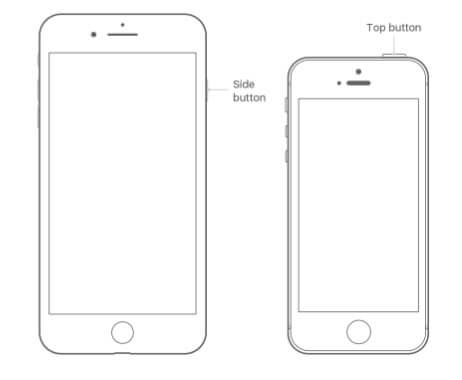
If you are using an iPhone 8 or an earlier version:


Press and hold the Top button until you see the slider.


Drag it to turn the device off.


Once the device is turned off, you should press and hold the Top button to see the Apple logo.


6Reset All Settings

If you believe that there are several issues related to the settings, it is easier to get them all reset. Here’s how to do it.


Go to the Setting app of the iPhone though Home Screen.


Go to General.


Tap on Reset which is located towards the bottom of the screen.


Now, you should find an option called Reset All Settings.


Tap it and enter the passcode when prompted.


During process, if you lost any important data, you can use Gihosoft iPhone Data Recovery. Even if your iPhone stuck in recovery mode, you can also use this software to rescue photos and videos in iPhone recovery mode.


You may also like:Gihosoft Total Video Converter is a professional all-in-one video tool that enables you to convert videos and audios into various different formats. You can also download videos from YouTube or other online video sharing sites and convert them easily. Plus, you’re able to personalize your videos with its inbuilt editor, such as, trimming, cropping, applying video effects, adding watermark, subtitles, and more. If you need a powerful and professional desktop video converter program, just download Total Video Converter and follow the step-by-step guide here to have a try.


Friday, 3 August 2018

Top 7 Best Android Data Backup & Recovery App in 2018-2019

Top 7 Best Android Data Backup & Recovery App in 2018


One of the most important tasks that people often ignore is keeping a backup of their valuable digital data. There is always a risk of losing your files. Your device may get damaged, and firmware updates may format your device. If you are an Android user, thankfully there Android backup apps that can take care of your data and store them offline or in the cloud securely. Moreover, such apps can run on regular intervals and backup without user intervention.

Note: This list isn’t in order of preference. Readers are advised to choose any app that suits their needs.
7 Free And Best Android Backup Apps Of 2018-2019
1. App/SMS/Contact- Backup & Restore


App/SMS/Contact- Backup & Restore has a variety of features for backup and restore. It permits you to batch backup, restore, transfer, and share your apps and personal data. You can backup your files to the Google Drive or edit the backup path to store data on your SD card. It has an option for auto-backup that allows you to backup every app installation update automatically.

Moreover, it has a built-in virus scanner, APK files scanner, night mode, and you can also sort your apps by name/date/size. However, the app cannot backup, restore, or transfer data and settings of the apps. The app is free and contains ads.
2. G Cloud Backup


G Cloud is an impressive Android backup app where users need to create an account to store the backups. It provides 1GB of backup space for free. It allows you to save your SMS, call logs, contacts, system settings, photos, videos, and music. You can easily move your files to a new device and also protect personal apps with a passcode. It does not require root privileges or any unique configuration, and even allows backups to external SD cards. You can schedule automatic backups and upload whenever there is a WiFi connection. The app is free, contains ads and in-app purchases.
3. Super Backup & Restore


Super Backup & Restore claims to be one of the fast backup and restore tools for Android. It enables you to backup your apps, contacts, messages, call history, bookmarks, and calendars to your SD card or Google Drive. You can also backup and restore your app’s data. But for that, you need to root your device. Moreover, you can schedule automatic backups. It can also auto-upload scheduled backups to your Google Drive or Gmail. The interface is easy to operate and comes with customizable dark or white theme. The app is free, but the ads can be annoying. There is also a pro version of the app that is ad-free.
4. Google Drive


It is a free massive cloud storage service from Google that provides basic storage of 15GB which is enough to store your photos, files, and other documents. You can access your virtual Google hard drive from any device no matter on which platform you are. It also allows you to view your files offline just using simple procedures. Moreover, you can share your files and folders with others and also edit or add comments on any of your files. It is definitely one of the best Android backup apps that can store your information securely in the cloud.
5. App Backup and Restore- Easiest backup tool


This is a reliable and straightforward Android backup and restore app. It allows you to store, archive, or delete backups directly from the main interface. You can batch backup and restore your files, and also set the backup path to your SD card. It has a built-in APK file scanner and virus scanner. Also, you can choose to auto-backup specific apps instead of all apps. Moreover, you can share apps between devices through WiFi and Bluetooth. The app, however, only allows you to backup and restore your APK files, without your application data. It is free and contains ads.
6. Titanium Backup


Titanium backup has been a solid backup app since the early days of Android. It is exclusively for root users and supports almost all Android versions. The app is ad-free and available in both free and premium version. With the free version, you can backup and restore apps along with the app data, SMS, contacts, etc. It also supports backup to SD card. The premium version provides some extra features like syncing to cloud storage, automatic backup, batch restore, app freezer, etc. Overall, the app is quite excellent and worth a try.
7. Contacts Backup & Restore by Simpler


If you’re searching for the best Android contacts backup app, Simpler backup is a straightforward app that does what the name says. It allows you to backup your contacts as a VCF file and works even in offline mode. You can export your backups to DropBox, Google Drive, or SD card. You can also move your contacts between different accounts. Overall, the app is quite basic and easy to operate. It is free with no ads or in-app purchases and is also available in 15 different languages.

Gihosoft Free Android Data Recovery
Gihosoft Free Android Data Recovery is a professional Android file recovery software that enables you to recover deleted photos, music, videos, messages, contacts, call logs, WhatsApp messages, Viber chat history and more from Samsung, Huawei, LG, HTC, Motorola, Google, Oneplus, Sony, Lenovo, ZTE and other Android devices directly.


Did this list help you to find the best Android backup app? Share your reviews in the comments.


Wednesday, 25 July 2018

How to Recover Data From a Corrupt ZIP File


How to Recover Data From a Corrupt ZIP File


Recover Data From a Corrupt ZIP File


Corrupt files can result from a variety of issues including bad drive sectors, malware, an incomplete download or transfer such as during a drop in your connection, or any other sudden interruption like a power failure or an improper shut down while working with the ZIP file.

A corrupt ZIP file may open for you anyway, but some of the original files might be missing and attempting to open damaged ZIPs typically causes Windows to prompt with the following error:

"Windows cannot open the folder. The Compressed (zipped) Folder 'C:\Users\TechSpot\Desktop\Wallpaper Collection Corrupt.zip' is invalid"


We recreated a corrupt ZIP file by archiving an old collection of wallpapers and deleting parts of the file's code using a hex editor (Notepad++). In doing so, our collection dropped from nine images to one and we couldn't actually open the file even though it was still being displayed in the file explorer.

Your rate of success recovering anything from an archive will vary depending on the tool you use, the contents of your ZIP and the degree to which it has been corrupted.


Starting with the software that you are most likely to have installed already, WinRAR provides a built-in repair tool for damaged ZIP files. Open the file, then go to Tools > Repair archive. WinRAR managed to recover seven out of the nine files from our damaged archive. However, the software is only free for 40 days, after which a license to continue using the software will cost you about $30.

WinZip and 7-Zip don't seem to have integrated repair tools but the companies do offer good information pages about corrupt ZIP files.


More tools to repair corrupt ZIP files

DiskInternals Zip Repair - Free to download, it managed to recover eight out of the nine original files. It's dedicated to repairing zip files so it has less clutter to navigate than WinRAR and it launches with a wizard-style prompt instead of you having to go through any menus.

Zip2Fix - Tied for first place recommendation. Its spartan interface has even less clicks involved than DiskInternals: you open the corrupt ZIP and the software automatically begins its process and outputs any recovered files to the source directory without asking or prompting about anything. It worked as well as DiskInternals, recovering eight of the nine files (and again, that's one better than WinRAR).


As a final freebie mention, Object Fix Zip has a similar interface to DiskInternals Zip Repair but for some reason it didn't manage to recover any of the images from our test ZIP, making it difficult to recommend before DiskInternals or Zip2Fix, or even WinRAR.

Likewise, there are also many licensed utilities dedicated to recovering files from broken archive files and in our testing all of them provided about the same level of service as the freeware solutions mentioned above except that they don't let you extract the files without paying, though they do at least show you the files that are available for recovery.

DataNumen Archive Repair (formerly Advanced Archive Repair) claimed to have recovered eight of the nine files with 100% accuracy but again the freeware version doesn't provide access to the files. Instead, they are locked behind a $49.95 license fee for DataNumen Zip Repair or as much as $200+ for DataNumen Archive Repair, which supports additional file types such as Unix TAR and Windows CAB archives.


Gihosoft Android data recovery Free is a super awesome software specialized in Android file recovery. With this program, you are able to recover deleted photos, music, videos, messages, contacts, call logs, WhatsApp messages, Viber chat history and more from Samsung, Huawei, LG, HTC, Motorola, Google, Oneplus, Sony, Lenovo, ZTE and other Android devices directly. Meanwhile, this Android data recovery software is available for both Windows and Mac platforms.

How to Enable Material Design 2.0 for Google Apps?


How to Enable Material Design 2.0 for Google Apps?


The easiest way is to enable Modern Design on your Google Chrome.


Launch your Google Chrome.


Then Go to this URL “chrome://flags


Search for “modern design”.


Locate the “Chrome Modern Design”.


Enable it.

Method 2: Alternatively, you can enable the Modern Design on any Google app by simply clearing the cache as well as data of the Google app. We received the Material Design 2 immediately after did a reset of the Chrome Browser (clear data).


How to clear app cache and data?


Go to Settings


Open Apps


Scroll down and locate to Chrome Beta


Tap on it


Tap on storage


Manage Storage


Clear All Data (Doing so will remove all saved data, so backup)

Alternative way is to simply launch the app > go to Recent apps > Tap on app icon > App info > Clear all data.


A more aggressive way is to switch to a different Google account, like we did to instantly activate Google Assistant back when the app was new. You may also try clearing Google Play Services cache and data.

Gihosoft Android data recovery Free is a super awesome software specialized in Android file recovery. With this program, you are able to recover deleted photos, music, videos, messages, contacts, call logs, WhatsApp messages, Viber chat history and more from Samsung, Huawei, LG, HTC, Motorola, Google, Oneplus, Sony, Lenovo, ZTE and other Android devices directly. Meanwhile, this Android data recovery software is available for both Windows and Mac platforms.


How to listen to podcasts: On computer, iPhone or Android


How to listen to podcasts: On computer, iPhone or Android


1. Do I have a smart phone?


Oi, Mum. As Monique Bowley pointed out, you can’t listen to a podcast on the home phone. Or on your Nokia. You need one with… Internet.
2. Download a podcast app.


If you have an iPhone, then you should already have a ‘Podcast’ app. Mum – stop yelling – you have an android. I’m getting to you.


If you have an android, then download a podcast app. The best one is obviously the Mamamia Podcast App which has all the shows in our network. But if you want to listen to something outside our network (eg. The Teacher’s Pet) then download Radio Public or something of the like. It’s free. Yes, Mum, I’ll do it for you. Stop interrupting.
3. Search for the podcast you want, and press play.


There’s a search bar. Type in the show you want, and tap ‘Subscribe’. That means you will automatically get an episode every time it drops. And then, press the play button. Yes, Mum, that’s the side on triangle.
4. Oh. And you need headphones or a speaker.


Unless you want to be that… guy… on public transport.


There is one rule and one rule only: Don’t watch podcasts on your laptop. Please. Life is far too short.


Gihosoft Android data recovery Free is a super awesome software specialized in Android file recovery. With this program, you are able to recover deleted photos, music, videos, messages, contacts, call logs, WhatsApp messages, Viber chat history and more from Samsung, Huawei, LG, HTC, Motorola, Google, Oneplus, Sony, Lenovo, ZTE and other Android devices directly. Meanwhile, this Android data recovery software is available for both Windows and Mac platforms.

Please Check the Compatible Cydia tweaks for your Firmware with Compatimark

Installing of the any tweaks might crash your device because they might are compatible with the iOS 11.2 or 11.1.3 or 11.4 beta 3. So we might be confusing which tweaks works fine on our devices.


Tweak Name

COMPATIMARK


Author

CP Digital Darkroom


Compatibility

iOS 8, 9, 10 and 11


Repo

https://repo.packix.com


Price

Free


Version

1.0


Rating


For you ease and protection from crashing your devices, a new free jailbreak tweak called Compatimark is available on Cydia developed by CP Digital Darkroom that shows you the compatibility of any tweaks for your jailbreak firmware. That means it displays all the tweak that is or not compatible with your iOS jailbreak version.After installing the Compatimark tweak, you will notice icons with blue or gold shield icons in Cydia’s Changes tab or when searching any tweaks.Tweak that are marked with the shield icons works on your firmware while other are either incompatible and installing them might freeze your device and re-jailbreak again.Gold shield icon indicates that a tweak compatible with iOS 11.0-11.4 beta3 , while a blue shield are compatible with the lower version like iOS 9 & iOS 10.When installing new tweak from the Changes tab this helps a lot and lets you to stay in safe side. Compatimark tweak is the best way to check the packages(tweaks) compatibility with the iOS jailbreak firmware.If you lost videos from iOS Camerall Roll which are nowhere to download again, you can use Gihosoft iPhone Data Recovery to get back deleted videos from iOS device including iPhone, iPad and iPod Touch.

Jihosoft iPhone Backup Extractor Extract and recover all types of data from iPhone backup files, such as camera roll photos, videos, SMS, contacts, reminders, WhatsApp, and etc.

Gihosoft Android data recovery Free is a super awesome software specialized in Android file recovery. With this program, you are able to recover deleted photos, music, videos, messages, contacts, call logs, WhatsApp messages, Viber chat history and more from Samsung, Huawei, LG, HTC, Motorola, Google, Oneplus, Sony, Lenovo, ZTE and other Android devices directly. Meanwhile, this Android data recovery software is available for both Windows and Mac platforms.


How to Unlock iPad Password with iTunes


How to Unlock iPad Password with iTunes


If you can’t remember password for iPad, iTunes can help you unlock the device too although the process is usually complicated and has a lot of limitations when compared to using LockWiper. To use iTunes, follow the steps below:


Connect your iPad to a computer you synced with and open iTunes.


Allow iTunes some time for it to sync your device and create a backup.


After the sync and backup creation is finished, tap Restore [your device].


Tap Restore from iTunes backup on the Set Up Screen. Select your iPad on iTunes and then pick a backup to restore it from.


If you can’t remember password for iPad, you don’t have to lose the iPad. This article should help you unlock the device quite easily.If you lost videos from iOS Camerall Roll which are nowhere to download again, you can use Gihosoft iPhone Data Recovery to get back deleted videos from iOS device including iPhone, iPad and iPod Touch.

Jihosoft iPhone Backup Extractor Extract and recover all types of data from iPhone backup files, such as camera roll photos, videos, SMS, contacts, reminders, WhatsApp, and etc.

Gihosoft Android data recovery Free is a super awesome software specialized in Android file recovery. With this program, you are able to recover deleted photos, music, videos, messages, contacts, call logs, WhatsApp messages, Viber chat history and more from Samsung, Huawei, LG, HTC, Motorola, Google, Oneplus, Sony, Lenovo, ZTE and other Android devices directly. Meanwhile, this Android data recovery software is available for both Windows and Mac platforms.


Tuesday, 24 July 2018

How to Use App Limits and Downtime in iOS 12


How to Use App Limits and Downtime in iOS 12
How to Set Individual App Limits in iOS 12


Launch the Settings app on your iPhone or iPad.


Tap Screen Time.


Tap the Screen Time graph for this device. Alternatively, tap All Devices.


Scroll down to the Most Used list and tap an app you want to set a limit for.


Tap Add Limit at the bottom of the menu.


Select a time limit using the hour and minute wheels. If you want to set different limits for particular days of the week, tap Customize Days.


Tap Add to apply the app limit.
How to Set App Category Limits in iOS 12


Launch the Settings app on your iPhone or iPad.


Tap Screen Time.


Tap App Limits.


Tap the categories in the list that you'd like to include in the limit, or select All Apps & Categories.


Tap Add in the upper right of the screen.


Select a time limit using the hour and minute wheels. If you want to set different limits for particular days of the week, select Customize Days.


Tap Back when you're done.


Add another limit if desired, or tap Screen Time to return to the main Screen Time menu.

When you're approaching a designated limit, iOS will alert you in advance with a standard notification. When you finally reach the limit, the alert will take over the screen.

If you lost videos from iOS Camerall Roll which are nowhere to download again, you can use Gihosoft iPhone Data Recovery to get back deleted videos from iOS device including iPhone, iPad and iPod Touch.

Jihosoft iPhone Backup Extractor Extract and recover all types of data from iPhone backup files, such as camera roll photos, videos, SMS, contacts, reminders, WhatsApp, and etc.

Gihosoft Android data recovery Free is a super awesome software specialized in Android file recovery. With this program, you are able to recover deleted photos, music, videos, messages, contacts, call logs, WhatsApp messages, Viber chat history and more from Samsung, Huawei, LG, HTC, Motorola, Google, Oneplus, Sony, Lenovo, ZTE and other Android devices directly. Meanwhile, this Android data recovery software is available for both Windows and Mac platforms.

TOP 10 BANNED ANDROID APPS NOT ON THE PLAY STORE 2018

TOP 10 BANNED ANDROID APPS NOT ON THE PLAY STORE 2018


TOP 10 BANNED ANDROID APPS


1. TubeMate


TubeMate is a solid android app because it lets you download youtube videos onto your android device. TubeMate has been around for quite some time, but it is the go to app if you want to download youtube videos and watch them without any wifi or data connection!


Download here


2. OGInsta


OGInsta is an android app for those who are instagram heavy. OGInsta allows you to long press and zoom in on pictures. Also, it gives you the option of downloading pictures and videos on Instagram.


Download here


3. FileChef


FileChef allows you to download any file you can think of. This includes: apps, movies, tv shows, mp3 songs, and much more. The interface is very simple, and there is not much of a learning curve.


Download here


4. Fildo


Fildo is a new music app that allows you to stream and download music. The best part of this app is the quanitiy of songs that it contains. It has thousands upon thousands of songs. All you have to do is search for an artist, song, or album and then it will have it. I highly recommend this app if you want free music.


Download here


5. CinemaBox HD


For all those movies, anime, cartoons and sitcom lovers out there, Cinemabox is the app that is made just for you. By downloading this app you do not need to spend any money and you can easily watch the latest entertaining movies, cartoons etc with just your cellphones or other devices.


Download here


6. LuckyPatcher


LuckyPatcher is an app that lets you hack any android app or game. It gives you the option of getting free in app purchases, removing licenses, ad removal, and much more!


Download here


7. Mobdro


Mobdro is a very solid live tv android app that has been around for quite some time. It has some of the best channels, and also includes a 24/7 movies section.


Download here


8. Mixplorer


MiXplorer is a file explorer that is customizable and it is definetely one of the top file explorerers. The interface is very stunning, and very easy to follow.


Download here


9. Aptoide


Aptoide is one of the top apps on this list. Aptoide allows you to get paid android apps and games for free, and it can be used as a play store alternative.


Download here


10. F-Droid


F-Droid gives you a bunch of tweaks and addons that you can enhance your android device with. It can be compared to a Play Store but it is only full of tweaks.


Download here TOP 10 BANNED ANDROID APPS


Gihosoft Android data recovery Free is a super awesome software specialized in Android file recovery. With this program, you are able to recover deleted photos, music, videos, messages, contacts, call logs, WhatsApp messages, Viber chat history and more from Samsung, Huawei, LG, HTC, Motorola, Google, Oneplus, Sony, Lenovo, ZTE and other Android devices directly. Meanwhile, this Android data recovery software is available for both Windows and Mac platforms.

Monday, 23 July 2018

How to Fix iPhone showing phantom unread text message notification when none pending

How to fix iPhone showing phantom unread text message notification when none pending

Many iPhone X/7 and iPhone 6s users are facing issue with iOS 11 and iOS 12 that Messages app icon shows one unread message on the app icon, but there are no unread messages anywhere in the app left to read. The ghost message issue is also in iPad as well. This seems like a phantom address is lying in the iPhone as iPhone shows a number one as an unread text message and you won’t have any unread messages.


The messages app notification badge won’t go away when there are no pending SMS. it is annoying and can let user ignore some important messages due to this issue. The iPhone user tried hard to find out the unread message but there are none and message app in showing unread badge/notifications. The issue happen to occur more frequently on iOS11/iOS12 upgrade.

User can’t really find out why iPhone showing phantom unread text message indicator one Message app and the message notification won't go away ios 11 as Notification badges will not clear from Messages App.

How to fix iPhone showing ghost unread message icon :

Fix 1 : Clear the notification and reset

First turn off the Notifications in settings. Now restart iphone by power down the iPhone, power up again, turned on Notifications, now the false indicator should go away or you should be able to see the unread message.

Fix 2 : Hard reboot iPhone

Perform and hard reset to your iPhone by holding the power button and home button until apple logo appears and a force reboot happens. This fixed the issue fir many users.

Fix 3 :Login and logout from icloud

Try by logging out from the iCloud and restarted the iPad/iPhone. This should clear the fake unread message notification.

Fix 4: Do iOS restore


Back up the iPhone to computer using iTunes. Now use iTunes to reset and restore the iPad/iPhone. This should get away ghost notifications from message.If you lost videos from iOS Camerall Roll which are nowhere to download again, you can use Gihosoft iPhone Data Recovery to get back deleted videos from iOS device including iPhone, iPad and iPod Touch.


Jihosoft iPhone Backup Extractor Extract and recover all types of data from iPhone backup files, such as camera roll photos, videos, SMS, contacts, reminders, WhatsApp, and etc.

Gihosoft Android data recovery Free is a super awesome software specialized in Android file recovery. With this program, you are able to recover deleted photos, music, videos, messages, contacts, call logs, WhatsApp messages, Viber chat history and more from Samsung, Huawei, LG, HTC, Motorola, Google, Oneplus, Sony, Lenovo, ZTE and other Android devices directly. Meanwhile, this Android data recovery software is available for both Windows and Mac platforms.

iMobie PhoneClean Pro License Key & Crack is it Safe?

iMobie PhoneClean Pro License Key & Crack is it Safe?

Is PhoneClean Safe?

The official version of iMobie PhoneClean Pro is 100% safe to install and use. You can verify that by scanning it with your favorite antivirus program. It will not find any malware or virus. The cracked version on the other hand is not safe to use and may contain virus or malware that your antivirus program will detect.
Truth About iMobie PhoneClean Pro Crack & License Code Online

If you are downloading iMobie PhoneClean Pro from a website other than the official one, then you are likely to find iMobie PhoneClean crack and registration code. These are two parts of the software that are related to this software being registered and available for use.
PhoneClean Pro Crack/Torrent

As mentioned above, cracked version of any software is not safe to use because it may contain a virus or malware. The same is the case with iMobie PhoneClean Pro crack. While it may seem tempting to download the crack and use the software for free, you are likely to encounter several problems due to using the cracked version. Virus/malware is the primary reason to avoid it.
PhoneClean Pro License Code

iMobie PhoneClean needs a license code in order to work. The license code available on other websites has been used too many times. As a result, when you try to register the software with that code, the registration will fail.
Why Never Use Crack Version or Registration Code Online?

There are many disadvantages of using cracked version of a software or an unofficial registration code. Following are some of those disadvantages:


There is no security guarantee when you are using a cracked version of the software. The purpose of a crack is to unlock the features of the software and allow users to use it without purchasing. The crack may stop working at any time.


There are no scheduled upgrades available for cracked versions of the software. Without upgrades, you will miss out the new features and bug fixes.


Since you did not purchase the software officially, you will not receive any support from the software’s developers if you are using a cracked version.

If you lost videos from iOS Camerall Roll which are nowhere to download again, you can use Gihosoft iPhone Data Recovery to get back deleted videos from iOS device including iPhone, iPad and iPod Touch.

Jihosoft iPhone Backup Extractor Extract and recover all types of data from iPhone backup files, such as camera roll photos, videos, SMS, contacts, reminders, WhatsApp, and etc.

Gihosoft Android data recovery Free is a super awesome software specialized in Android file recovery. With this program, you are able to recover deleted photos, music, videos, messages, contacts, call logs, WhatsApp messages, Viber chat history and more from Samsung, Huawei, LG, HTC, Motorola, Google, Oneplus, Sony, Lenovo, ZTE and other Android devices directly. Meanwhile, this Android data recovery software is available for both Windows and Mac platforms.

Friday, 20 July 2018

How to Update AirPlay 2 on Sonos Speakers

How to Update AirPlay 2 on Sonos Speakers


Step #1. Launch the Sonos app on your iOS device.

Step #2. Now, tap on More in the bottom right corner and select Update. Next, you’ll be directed to the App Store to update the app.


Step #3. Next up, relaunch the Sonos app. It will Check for Updates.


Step #4. Up next, tap on Update.


Once it’s done successfully, “Use AirPlay with Sonos” appears in the Sonos app. It offers you the green signal that you are ready to go!
How to Use Sonos Speaker via AirPlay 2


Step #1. Launch your favorite music app. I’m going to use Apple Music app. Then, play your favorite track.


Step #2. When the song is playing, tap on audio source icon.


Step #3. Next, Sonos speaker(s) will appear in the source list. Select it and you are done!Jihosoft iPhone Backup Extractor Extract and recover all types of data from iPhone backup files, such as camera roll photos, videos, SMS, contacts, reminders, WhatsApp, and etc.


Gihosoft Free iPhone Data Recovery is a professional iPhone Data Recovery software to get back all your lost text message, photo, video, call history, note, contact and more from iPhone/iPad/iPod Touch.